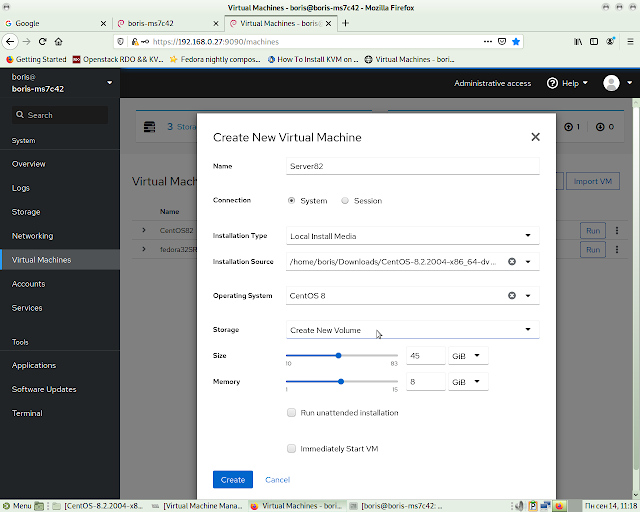
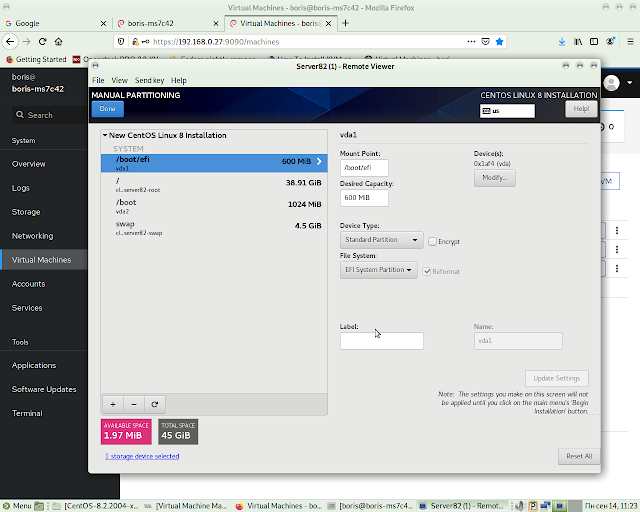
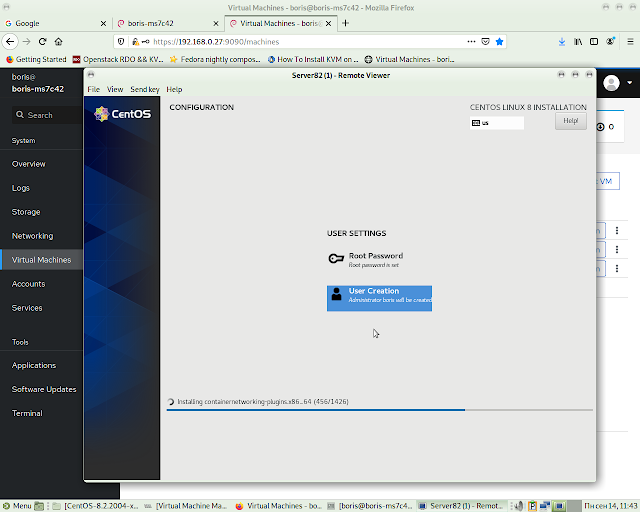
First notice that we are installing on Ryzen box with board MSI X570 A-PRO in UEFI mode with "kvm" enabled.
First of all we intend to verify that kvm has been enabled
$ dmesg | grep kvm
[ 4.376968] kvm: Nested Virtualization enabled
[ 4.376978] SVM: kvm: Nested Paging enabled
and proceed with installing Virtualization Host the same way we
would do it on Debian “bullseye”
$ sudo apt install qemu-kvm libvirt-daemon bridge-utils \
virtinst libvirt-daemon-system -y
$ sudo apt install virt-top libguestfs-tools libosinfo-bin \
qemu-system virt-manager -y
$ sudo modprobe vhost_net
$ lsmod | grep vhost
$ echo vhost_net | sudo tee -a /etc/modules
$ sudo reboot
![]()
It's nice to have virt-manager installed ( Spice console ) but presence of Web Cockpit Console is quite enough to manage guest's deployment via clicking button "Remote Virt-viewer" built into Cockpit Web Console. Bridge attached to external network interface was also created pretty smoothly utilizing network management section inside Web Console.
Install Web Cockpit Console
$ sudo apt install cockpit cockpit-machines
$ sudo systemctl start cockpit.socket
$ sudo systemctl enable cockpit.socket
Tuning firewall
$ sudo apt install firewalld
$ sudo firewall-cmd --add-service=cockpit --permanent
$ sudo firewall-cmd --reload
![]()
Logging into Console at port 9090 and proceed as follows
![]()
![]()
![]()
![]()
![]()
![]()
![]()
![]()
![]()
First of all we intend to verify that kvm has been enabled
$ dmesg | grep kvm
[ 4.376968] kvm: Nested Virtualization enabled
[ 4.376978] SVM: kvm: Nested Paging enabled
and proceed with installing Virtualization Host the same way we
would do it on Debian “bullseye”
$ sudo apt install qemu-kvm libvirt-daemon bridge-utils \
virtinst libvirt-daemon-system -y
$ sudo apt install virt-top libguestfs-tools libosinfo-bin \
qemu-system virt-manager -y
$ sudo modprobe vhost_net
$ lsmod | grep vhost
$ echo vhost_net | sudo tee -a /etc/modules
$ sudo reboot

It's nice to have virt-manager installed ( Spice console ) but presence of Web Cockpit Console is quite enough to manage guest's deployment via clicking button "Remote Virt-viewer" built into Cockpit Web Console. Bridge attached to external network interface was also created pretty smoothly utilizing network management section inside Web Console.
Install Web Cockpit Console
$ sudo apt install cockpit cockpit-machines
$ sudo systemctl start cockpit.socket
$ sudo systemctl enable cockpit.socket
Tuning firewall
$ sudo apt install firewalld
$ sudo firewall-cmd --add-service=cockpit --permanent
$ sudo firewall-cmd --reload

Logging into Console at port 9090 and proceed as follows